 Clarity Softphone
Support
Need help with Clarity Softphone? Browse the answers below or reach out directly.
Getting Started
Open Settings
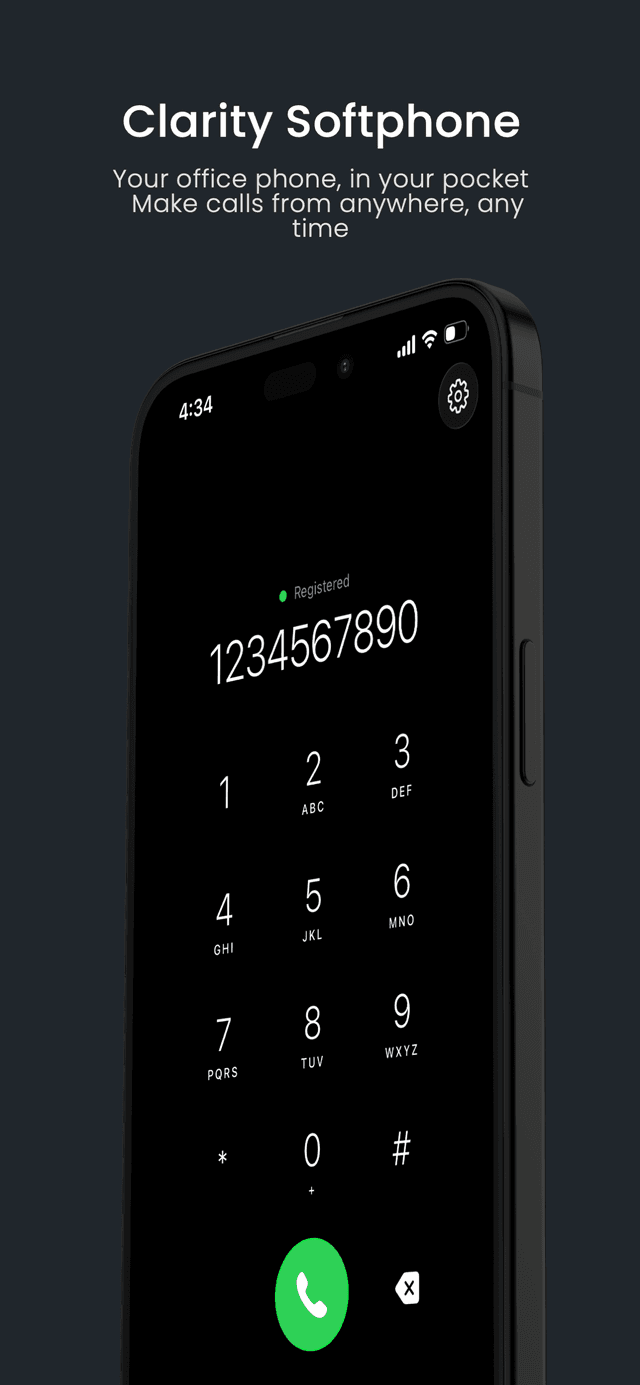
Tap the gear icon on the top-right of any screen to open SIP Settings.
Enter your SIP credentials
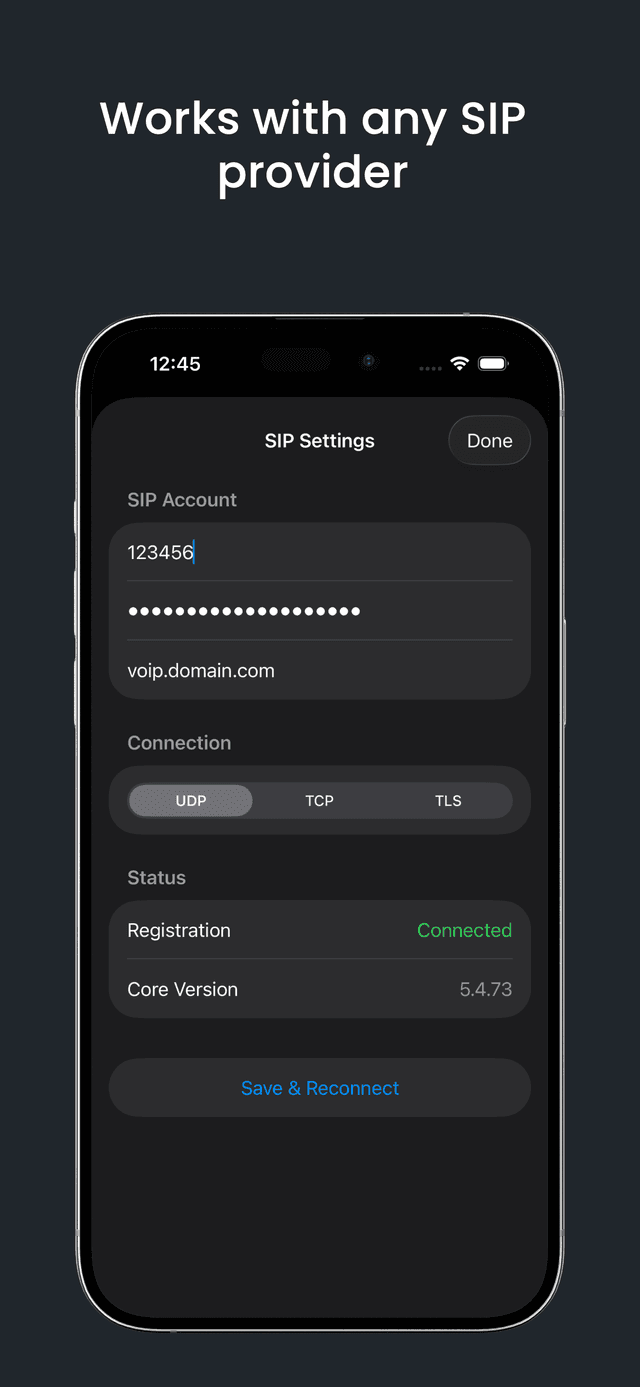
Fill in your SIP username, password, and server domain (e.g. voip.example.com).
Save & connect
Tap Save & Reconnect. The status will turn green when successfully registered.
Frequently Asked Questions
Why does the app say 'Not Registered'?
This means the app couldn't connect to your SIP server. Double-check your username, password, and SIP domain in Settings. Make sure your internet connection is active and your SIP server is reachable.
Which SIP providers are supported?
Clarity Softphone works with any standard SIP provider — including FreePBX, Asterisk, 3CX, Twilio, VoIP.ms, and more. You just need a SIP username, password, and server address.
What transport protocols are available?
The app supports UDP, TCP, and TLS. TLS is recommended for encrypted calls. You can switch between them in the SIP Settings screen.
How do I access my contacts?
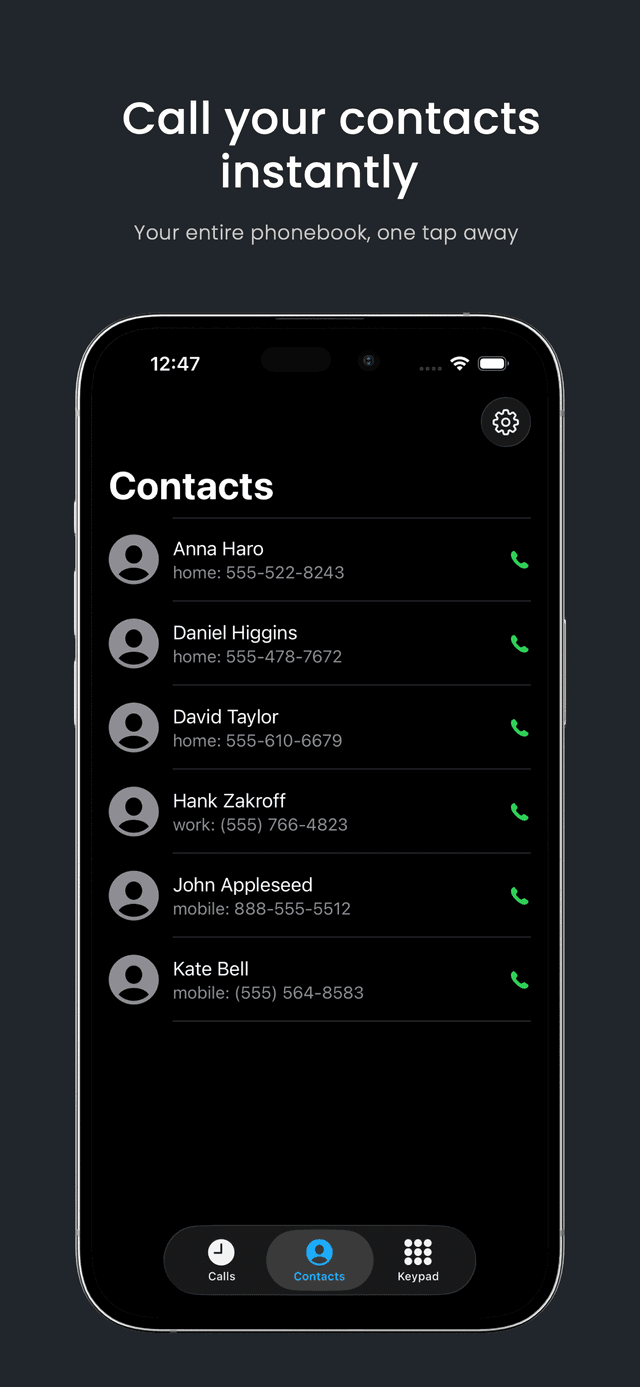
Clarity Softphone reads contacts directly from your iPhone's address book. Grant the Contacts permission when prompted, and your phonebook will appear in the Contacts tab.
Why can't I hear audio during a call?
Ensure the app has Microphone permission enabled in iPhone Settings → Privacy & Security → Microphone. Also check that your SIP server supports the audio codecs used by the app (G.711, G.722).
How do I delete call history?
Open the Calls tab and tap Clear All in the top-right corner to remove all call history entries.
Privacy Policy
Last updated: February 22, 2026
Data We Collect
Clarity Softphone does not collect, store, or transmit any personal data to our servers. All SIP credentials (username, password, and server domain) are stored locally on your device using the iOS Keychain and are never sent to us.
Contacts
If you grant Contacts permission, the app reads your address book solely to display contacts within the app. This data is never uploaded or shared with third parties.
Microphone
Microphone access is used exclusively for real-time voice calls. Audio is transmitted directly between your device and your SIP server. We do not record, store, or process any audio.
Call History
Call logs are stored locally on your device only. They are never synced to external servers and can be cleared at any time from the Calls tab.
Third-Party Services
The app does not integrate any third-party analytics, advertising, or tracking SDKs.
Contact
Questions about this privacy policy? Email us at work@arshwaraich.com.